APS Reporter/SP is a great tool for SPF Developers and Administrators who need to run adhoc queries on the SPF database. It makes it very easy to review data and investigate problems, and also to extract data when required.
In this post I'm going to look at a simple example of querying the SPF database to check a problem reported by an end-user. Of course, each SPF installation is different and the specific queries shown here are probably not applicable to your site, but APSR automatically adapts to the local SPF Schema and will generate queries based on your site's configuration.
Showing posts with label Query Builder. Show all posts
Showing posts with label Query Builder. Show all posts
Tuesday, April 22, 2014

Wednesday, April 16, 2014
Simple SPI Query
APS Reporter makes it very easy to extract data from an SPI database, whether you want to dump data to an Excel file for import to another system, or produce a fully formatted, pixel-perfect document. In this post I wanted to show just how quick and easy it is to create a Query and get the data out, with only a minimal knowledge of the SPI database.
For demonstration purposes, lets assume we want to get a list of Instruments with some basic data from the Index (I/O Type, Location, Instrument Type), plus details of the I/O Channel for the Instrument (Panel, I/O Card, Channel). Perhaps we need to provide this data to our DCS Supplier, for them to import into their own applications.
Also, lets for argument sake, assume we also want to include the Specification Sheet number for each Instrument, just for demonstration purposes.
This means we're looking for data from the Index, Wiring and Specification modules of SPI and typically you wouldn't be able to produce a report like this in the SPI Browser module. You could perhaps use Infomaker, MS-Access, or a similar query tool, but these would require a deeper understanding of the SPI database and the resulting queries would be quite complex.
APS Reporter/SP makes this process a lot easier.
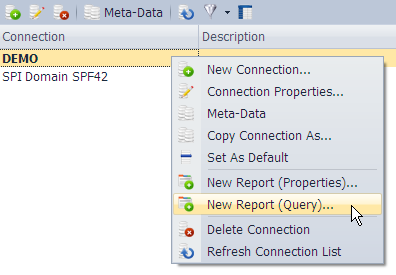
Firstly, we start with a New Report for our SPI Connection
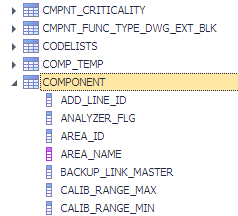
Once the Query Builder window opens, drill down the table tree to find the Component table, this is the main Instrument table in SPI.
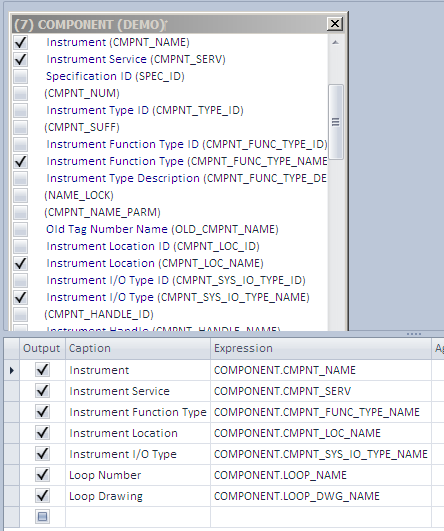
Double-click the Component table to add it to the Query Drawing pane, and select the fields we'd like to include in our query. I've selected the Instrument, Service, Function Type, Location, I/O Type, Loop Number and Loop Drawing fields.
Notice that in APSR we can select all of these fields directly from the Component table. In reality, in the database they are actually stored as part of five other tables, but APSR understands the database structure and resolves these fields for us.
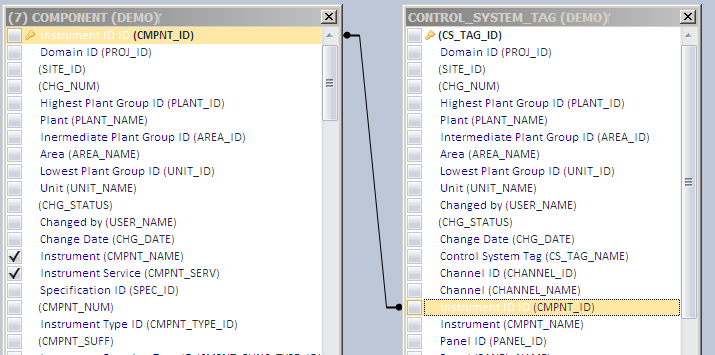
We need to join the Control System Tag table to the Component table, which we do by dragging the Instrument ID (CMPNT_ID) field from one table and dropping it on the corresponding field in the other table.
We then can select the fields we need from the Control System Tag table. I've selected the Control System Tag Name, Panel, Strip and Channel names.
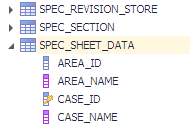
To get the Specification Sheet Number, we also need to add the Spec Sheet Data table. Again, double-click this to add it to the query drawing pane.
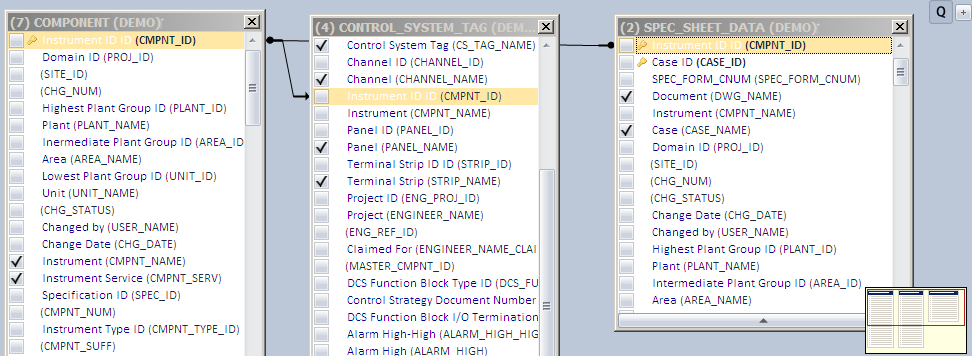
Again, we need to join the new table by dragging the Instrument ID (CMPNT_ID) field from the Component table to the Spec Sheet Data table. We can also select the Specification Sheet Number field at this time.
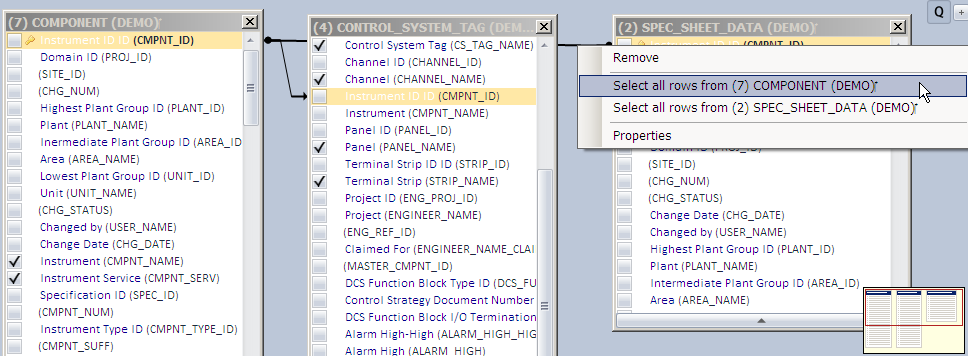
We need to make one more change to our query. By default, our results will ONLY include tags that have BOTH an I/O Channel assigned PLUS a Spec Sheet Number.
In this case, we actually want to include ALL Instruments in our results, so we need to change the Joins between the tables as shown in the image to the right (right-click on the Join line to see the menu).
 That's It!
Switch to the Results Grid to see the data.
That's It!
Switch to the Results Grid to see the data.
In addition to the data, the results grid also has correct title for all the columns.
If this query were written in some other tool (Infomaker, MS-Access, etc), it would have required a minimum of twelve tables, and upwards of 15 joins. Also, the fields would be labelled with the standard database names and would need to be modified for our end-users.
Our query required a total of three tables and two simple joins. APSR was able to resolve the other tables and fields as required. Of course, if you're an SQL Guru, don't worry, the APSR Query Builder can be used like any other SQL Query tool, and the Virtual Tables & Fields can be mixed and matched with standard objects. In short, SQL Virtualisation adds a whole lot of power, without taking anything away.
If you'd like to try APSR for yourself, download the Free Version from the link to the right (the Free Version is not a time-limited trial, it will not expire, and can be used in production systems if required).
Regards,

For demonstration purposes, lets assume we want to get a list of Instruments with some basic data from the Index (I/O Type, Location, Instrument Type), plus details of the I/O Channel for the Instrument (Panel, I/O Card, Channel). Perhaps we need to provide this data to our DCS Supplier, for them to import into their own applications.
Also, lets for argument sake, assume we also want to include the Specification Sheet number for each Instrument, just for demonstration purposes.
This means we're looking for data from the Index, Wiring and Specification modules of SPI and typically you wouldn't be able to produce a report like this in the SPI Browser module. You could perhaps use Infomaker, MS-Access, or a similar query tool, but these would require a deeper understanding of the SPI database and the resulting queries would be quite complex.
APS Reporter/SP makes this process a lot easier.
Firstly, we start with a New Report for our SPI Connection
Once the Query Builder window opens, drill down the table tree to find the Component table, this is the main Instrument table in SPI.
Double-click the Component table to add it to the Query Drawing pane, and select the fields we'd like to include in our query. I've selected the Instrument, Service, Function Type, Location, I/O Type, Loop Number and Loop Drawing fields.
Notice that in APSR we can select all of these fields directly from the Component table. In reality, in the database they are actually stored as part of five other tables, but APSR understands the database structure and resolves these fields for us.

We need to join the Control System Tag table to the Component table, which we do by dragging the Instrument ID (CMPNT_ID) field from one table and dropping it on the corresponding field in the other table.
We then can select the fields we need from the Control System Tag table. I've selected the Control System Tag Name, Panel, Strip and Channel names.

To get the Specification Sheet Number, we also need to add the Spec Sheet Data table. Again, double-click this to add it to the query drawing pane.
Again, we need to join the new table by dragging the Instrument ID (CMPNT_ID) field from the Component table to the Spec Sheet Data table. We can also select the Specification Sheet Number field at this time.
We need to make one more change to our query. By default, our results will ONLY include tags that have BOTH an I/O Channel assigned PLUS a Spec Sheet Number.
In this case, we actually want to include ALL Instruments in our results, so we need to change the Joins between the tables as shown in the image to the right (right-click on the Join line to see the menu).
That's It! In addition to the data, the results grid also has correct title for all the columns.
If this query were written in some other tool (Infomaker, MS-Access, etc), it would have required a minimum of twelve tables, and upwards of 15 joins. Also, the fields would be labelled with the standard database names and would need to be modified for our end-users.
Our query required a total of three tables and two simple joins. APSR was able to resolve the other tables and fields as required. Of course, if you're an SQL Guru, don't worry, the APSR Query Builder can be used like any other SQL Query tool, and the Virtual Tables & Fields can be mixed and matched with standard objects. In short, SQL Virtualisation adds a whole lot of power, without taking anything away.
If you'd like to try APSR for yourself, download the Free Version from the link to the right (the Free Version is not a time-limited trial, it will not expire, and can be used in production systems if required).
Regards,
Brian Raynor.
Monday, March 11, 2013
Instruments & Junction Box Connections
One of the really cool features of APS Reporter/SP is the Query Builder.
If you've worked with almost any database tools, you've seen graphical query builders. They help build SQL statements by dragging & dropping tables, creating joining, selecting fields, etc. Mostly they work much the same, with just some minor graphical changes, and usually they are great for simple queries, but have difficulty with complex queries. When it comes to writing complex queries, with sub-queries, nested unions, etc, it's back to directly coding SQL statements.
Novice users also generally have problems with Query Builders. Yes, they're graphical, and they are supposed to make it easy to create SQL statements, but they still use arcane Table & Field names, and the user still needs to understand how the database fits together. Despite being a "graphical" tool, they're still a barrier to new users getting up to speed.
For APSR, we have implemented a Query Builder that can handle almost any SQL statement, no matter how complex, all graphically. The weird field names now have clear descriptions of each field, and Virtual Tables & Fields simplify the database structure. Suddenly complex queries aren't so complex any more!
Here's a typical example. We wanted to create a simple Instrument Index Report for SPI, with the usual fields (Tag, Service, Manufacturer, Model, I/O Type, etc) plus we also wanted to include the Junction Box that the Instrument is connected to (ie where the field device is wired to). Simple enough requirement, but the Query is non-trivial.
The first step was to select all of the simple fields from the Component table in SPI:
 Fortunately, the Virtual Fields in APSR make this really easy. Almost all of the fields we want are included as Virtual Fields in the Component table, so we just need to pick them. There's no need to join to the various supporting tables (like Function Types, I/O Types, Equipment, Manufacturer, Model, etc).
The only complicated field in this Report will be the Junction Box that the field devices connect to. To identify the correct Junction Box, the Query uses a sub-query with Wire Group (signal) information to find, for each signal, the lowest signal sequence number in a Junction Box. Then a second sub-query is used to find the particular Junction Box that contains that signal sequence number.
In APSR, sub-queries are defined as "Derived Tables". Creating a Derived Table produces a new work-space for us to build our sub-query.

The first sub-query actually finds the lowest wire GROUP_SEQ number for each WIRE_GROUP_ID, for wires that are connected to Junction Boxes (CATEGORY_SEQ = 6).
 Then, we use the another Derived Table to use the minimum GROUP_SEQ from above to identify the correct Panel (Junction Box).
 Our first Derived Table appears in the middle, with only the two selected fields showing. This second Derived Table has two outputs, the CMPNT_ID to identify the field device, and the Panel Name (which conveniently uses another Virtual Field to simplify our query). This Derived Table appears in our Main query, where we join to the Component table, and select the Panel name (using an Outer Join, as not all Instruments are connected to Junction Boxes).
 Switching to the Query Results, we get:
 The final SQL Query Statement is shown below, although fortunately we don't ever need to actually work with this. You could copy-and-paste it into your own APSR system, although the full report is included as a Sample Report in the installation package. (Note that this Query will not work in other tools as it uses APSR Virtual Fields that are not supported by other applications)
Select
COMPONENT.CMPNT_NAME,
COMPONENT.CMPNT_SERV,
COMPONENT.CMPNT_FUNC_TYPE_DESC,
COMPONENT.CMPNT_FUNC_TYPE_NAME,
COMPONENT.PLANT_NAME,
COMPONENT.AREA_NAME,
COMPONENT.UNIT_NAME,
COMPONENT.LOOP_NAME,
COMPONENT.CMPNT_MOD_NAME,
COMPONENT.CMPNT_MFR_NAME,
JUNCTION_BOX.PANEL_NAME As FIRST_JB,
COMPONENT.LOOP_DWG_NAME,
COMPONENT.PID_DWG_NAME
From
COMPONENT
Left Join
(Select WIRE_GROUP.CMPNT_ID,
WIRE_TERMINAL.PANEL_NAME
From WIRE_GROUP
Inner Join WIRE_TERMINAL On WIRE_GROUP.WIRE_GROUP_ID = WIRE_TERMINAL.WIRE_GROUP_ID
Inner Join (Select Min(WIRE_TERMINAL.GROUP_SEQ) As MIN_GROUP_SEQ,
WIRE_TERMINAL.WIRE_GROUP_ID
From WIRE_TERMINAL
Inner Join PANEL On WIRE_TERMINAL.PANEL_ID = PANEL.PANEL_ID
Group By WIRE_TERMINAL.WIRE_GROUP_ID,
PANEL.PANEL_CATEGORY_SEQ
Having PANEL.PANEL_CATEGORY_SEQ = 6) FIRST_JB_CONNECT
On WIRE_GROUP.WIRE_GROUP_ID = FIRST_JB_CONNECT.WIRE_GROUP_ID
And WIRE_TERMINAL.GROUP_SEQ = FIRST_JB_CONNECT.MIN_GROUP_SEQ
Where WIRE_TERMINAL.WIRE_GRP_LEVEL = 1) JUNCTION_BOX
On COMPONENT.CMPNT_ID = JUNCTION_BOX.CMPNT_ID
Where
COMPONENT.CMPNT_ID <> 0 And
COMPONENT.PLANT_ID <> 0
Order By
COMPONENT.LOOP_NAME,
COMPONENT.CMPNT_NAME
Sub-queries are an incredibly powerful tool for expanding your Reports, and with the APSR Query Builder creating Sub-queries (or Derived Tables) is as simple as almost any other query.
If you'd like to see some other sample queries and reports for SPI, check the relevant Wiki page. More information is also available from the various links to the right.
If you have any queries (pun?) or comments, feel free to add them below.
Regards,
If you've worked with almost any database tools, you've seen graphical query builders. They help build SQL statements by dragging & dropping tables, creating joining, selecting fields, etc. Mostly they work much the same, with just some minor graphical changes, and usually they are great for simple queries, but have difficulty with complex queries. When it comes to writing complex queries, with sub-queries, nested unions, etc, it's back to directly coding SQL statements.
Novice users also generally have problems with Query Builders. Yes, they're graphical, and they are supposed to make it easy to create SQL statements, but they still use arcane Table & Field names, and the user still needs to understand how the database fits together. Despite being a "graphical" tool, they're still a barrier to new users getting up to speed.
For APSR, we have implemented a Query Builder that can handle almost any SQL statement, no matter how complex, all graphically. The weird field names now have clear descriptions of each field, and Virtual Tables & Fields simplify the database structure. Suddenly complex queries aren't so complex any more!
Here's a typical example. We wanted to create a simple Instrument Index Report for SPI, with the usual fields (Tag, Service, Manufacturer, Model, I/O Type, etc) plus we also wanted to include the Junction Box that the Instrument is connected to (ie where the field device is wired to). Simple enough requirement, but the Query is non-trivial.
The first step was to select all of the simple fields from the Component table in SPI:
The only complicated field in this Report will be the Junction Box that the field devices connect to. To identify the correct Junction Box, the Query uses a sub-query with Wire Group (signal) information to find, for each signal, the lowest signal sequence number in a Junction Box. Then a second sub-query is used to find the particular Junction Box that contains that signal sequence number.
In APSR, sub-queries are defined as "Derived Tables". Creating a Derived Table produces a new work-space for us to build our sub-query.
The first sub-query actually finds the lowest wire GROUP_SEQ number for each WIRE_GROUP_ID, for wires that are connected to Junction Boxes (CATEGORY_SEQ = 6).
Select
COMPONENT.CMPNT_NAME,
COMPONENT.CMPNT_SERV,
COMPONENT.CMPNT_FUNC_TYPE_DESC,
COMPONENT.CMPNT_FUNC_TYPE_NAME,
COMPONENT.PLANT_NAME,
COMPONENT.AREA_NAME,
COMPONENT.UNIT_NAME,
COMPONENT.LOOP_NAME,
COMPONENT.CMPNT_MOD_NAME,
COMPONENT.CMPNT_MFR_NAME,
JUNCTION_BOX.PANEL_NAME As FIRST_JB,
COMPONENT.LOOP_DWG_NAME,
COMPONENT.PID_DWG_NAME
From
COMPONENT
Left Join
(Select WIRE_GROUP.CMPNT_ID,
WIRE_TERMINAL.PANEL_NAME
From WIRE_GROUP
Inner Join WIRE_TERMINAL On WIRE_GROUP.WIRE_GROUP_ID = WIRE_TERMINAL.WIRE_GROUP_ID
Inner Join (Select Min(WIRE_TERMINAL.GROUP_SEQ) As MIN_GROUP_SEQ,
WIRE_TERMINAL.WIRE_GROUP_ID
From WIRE_TERMINAL
Inner Join PANEL On WIRE_TERMINAL.PANEL_ID = PANEL.PANEL_ID
Group By WIRE_TERMINAL.WIRE_GROUP_ID,
PANEL.PANEL_CATEGORY_SEQ
Having PANEL.PANEL_CATEGORY_SEQ = 6) FIRST_JB_CONNECT
On WIRE_GROUP.WIRE_GROUP_ID = FIRST_JB_CONNECT.WIRE_GROUP_ID
And WIRE_TERMINAL.GROUP_SEQ = FIRST_JB_CONNECT.MIN_GROUP_SEQ
Where WIRE_TERMINAL.WIRE_GRP_LEVEL = 1) JUNCTION_BOX
On COMPONENT.CMPNT_ID = JUNCTION_BOX.CMPNT_ID
Where
COMPONENT.CMPNT_ID <> 0 And
COMPONENT.PLANT_ID <> 0
Order By
COMPONENT.LOOP_NAME,
COMPONENT.CMPNT_NAME
Sub-queries are an incredibly powerful tool for expanding your Reports, and with the APSR Query Builder creating Sub-queries (or Derived Tables) is as simple as almost any other query.
If you'd like to see some other sample queries and reports for SPI, check the relevant Wiki page. More information is also available from the various links to the right.
If you have any queries (pun?) or comments, feel free to add them below.
Regards,
Brian Raynor.
Subscribe to:
Posts (Atom)